
There are five audio sources supported by the 2019+ 7" Display powered by RIDE COMMAND: AM radio, FM radio, weather radio, USB audio and Bluetooth® audio. Follow the steps below and note the compatibility requirements to play music in your model year 2019 or newer Polaris Off-Road Vehicle equipped with a 7-button 7" Display powered by RIDE COMMAND. For 2017-2018 Off-Road Vehicles equipped with the 7" Display powered by RIDE COMMAND, read Playing Music with the 2017-2018 7" Display powered by RIDE COMMAND.
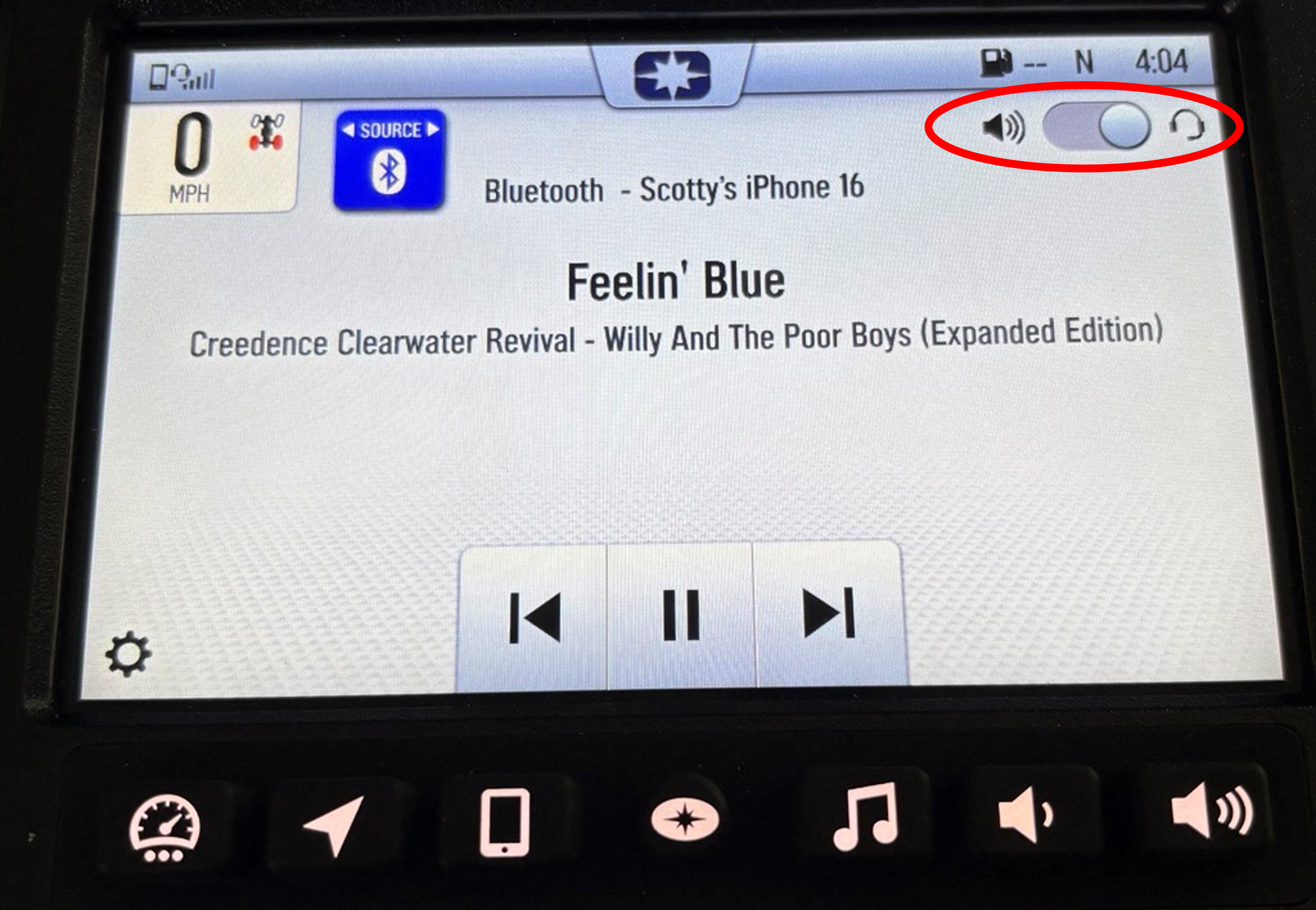
Note: When a Bluetooth® headset is connected to the display, the user has the option to toggle between the speaker and the headset for all audio sources. The toggle switch is circled in the picture below.
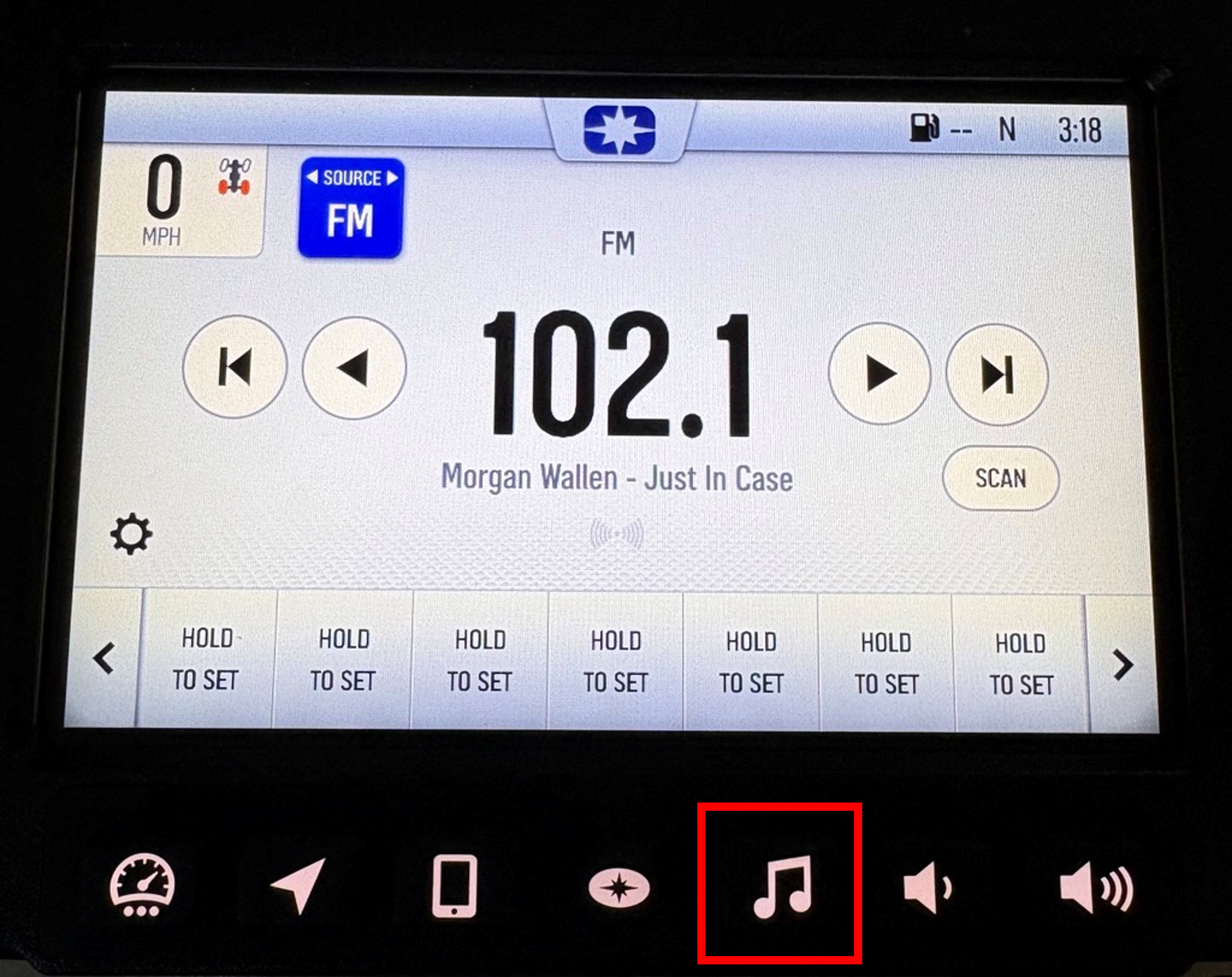
Press the Music button on the bottom of the display to access the audio screen.
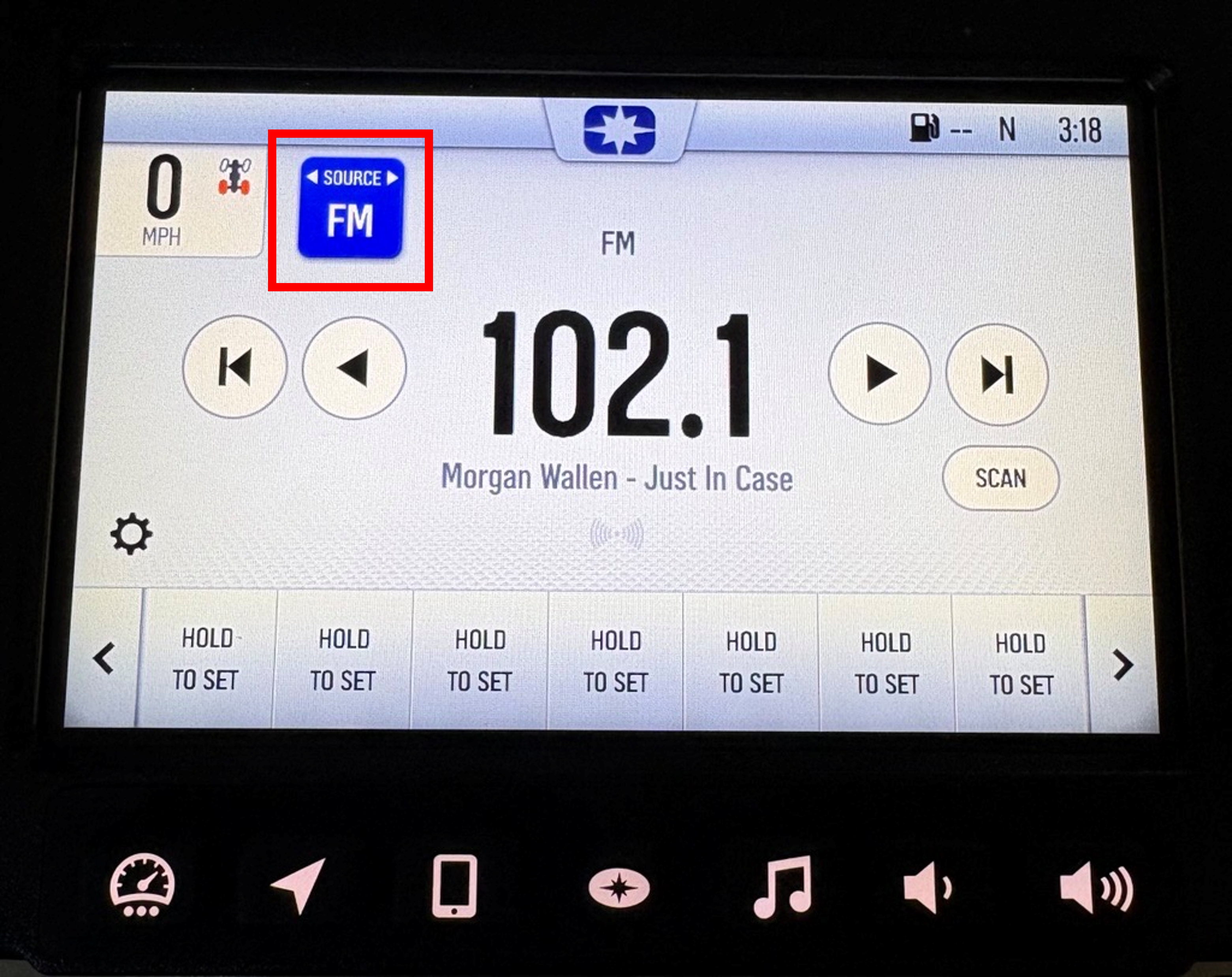
To select an audio source, tap the source selector button in the top-left corner of the audio screen. You can also hit the hard music button to reach the audio select screen.
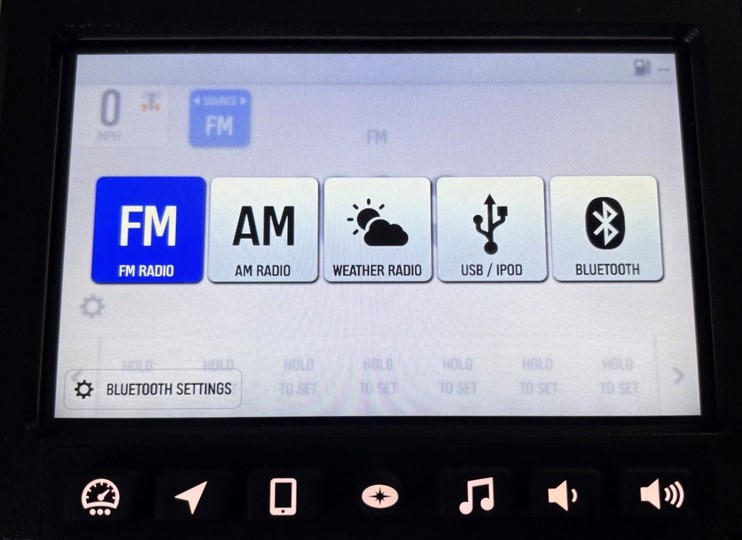
This will present all audio source options, allowing you to choose your desired source.
AM/FM Radio
To access the AM/FM radio, press the source selector button in the top-left corner of the screen. Select AM or FM.
Once selected, the center of the screen will display information for the station that is playing, including:
- Frequency
- Buttons to tune up/down (0.2 MHz for FM, 10 KHz for AM)
- Scan buttons to skip forward or backward by available stations
- Scan button
- Station name (if available)
- Artist name (if available)
- Song name (if available)
- Audio settings (gear) icon
- Signal strength
Along the bottom of the screen are radio presets that can be assigned to your favorite stations. To save a preset, tune to the desired frequency and tap and hold the HOLD TO SET button.
| Radio Tuner Region | FM, MHz | AM, KHz |
|---|---|---|
| North America | 0.2 | 10 |
| South America | 0.1 | 10 |
| Europe | 0.1 | 9 |
| Europe 50KHz | 0.1 | 9 |
| Japan | 0.1 | 9 |
| Taiwan | 0.2 | 9 |
| Australia | 0.2 | 9 |
Weather Radio
To access the weather band radio, press the source selector button in the top-left corner of the screen. Select WEATHER RADIO.
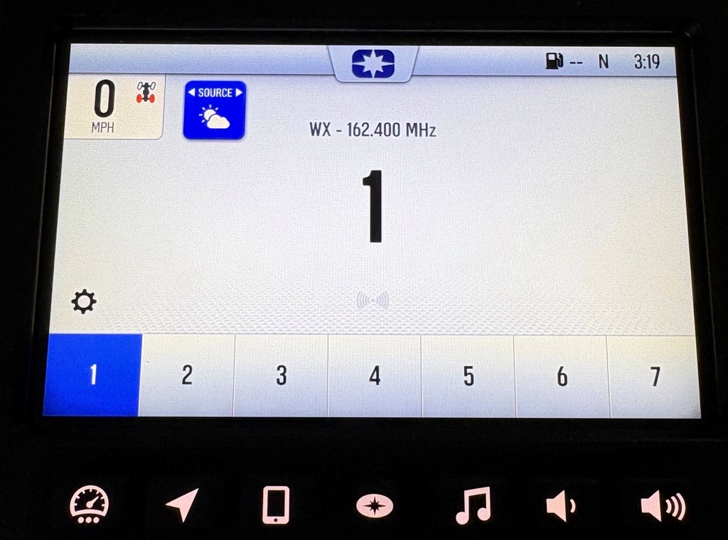
Once selected, the center of the screen will display information for the station that is playing, including:
- Frequency
- Station number
- Audio settings (gear) icon
- Signal strength
Switch stations by selecting the desired weather station on the bottom of the screen. Available stations vary by geographic location.
USB Music Playback
Depending on your model, the USB cord is generally located in the above-dash storage compartment, beneath the display or in the passenger side glove box.
Playing music through the USB port offers the most playback information and options. To access your USB audio, press the source selector button in the top-left corner of the screen. Select USB/IPOD.
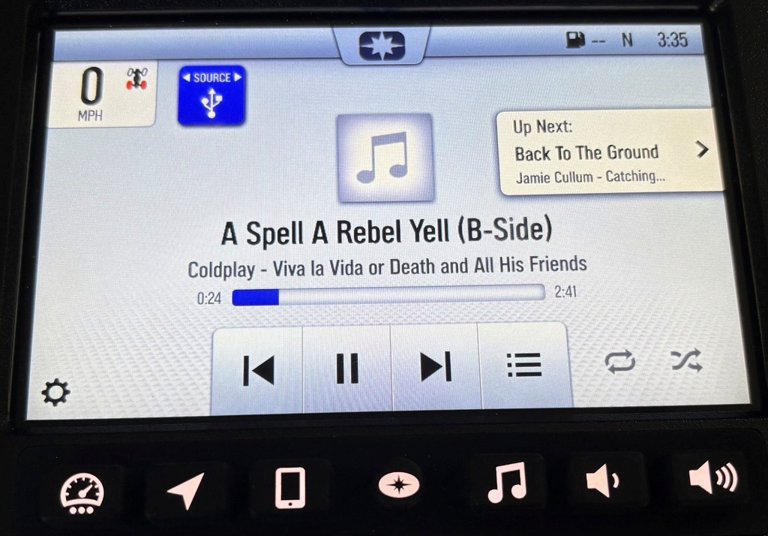
Once selected, the center of the screen will display information for the song that is playing, including:
- Song title
- Artist
- Album name
- Album artwork (if available)
- Song progress bar (includes current location and song length)
- Audio settings icon
- Playback controls
- Repeat (if available)
- Shuffle (if available)
- "Up Next" panel (if available)
Note: USB music playback requires a USB 2.0 or 3.0 that is exFAT® or FAT32 formatted. For help, read Formatting a USB to FAT32 or exFAT®. Audio file types must be in the .mp3 or .wav formats.
Playback Controls for USB Music
The USB cord is meant for playing music and transferring data, not for charging devices.
The playback controls available on your display include the following:
- Previous song
- Play/pause
- Next song
- More menu
Repeat: There are three repeat options that can be applied to the music you are playing: don't repeat, repeat album/playlist or repeat song. When "1" appears next to the repeat icon, the song will replay.
Up Next: Tapping UP NEXT on the screen will reveal the play queue in a pop-up window.
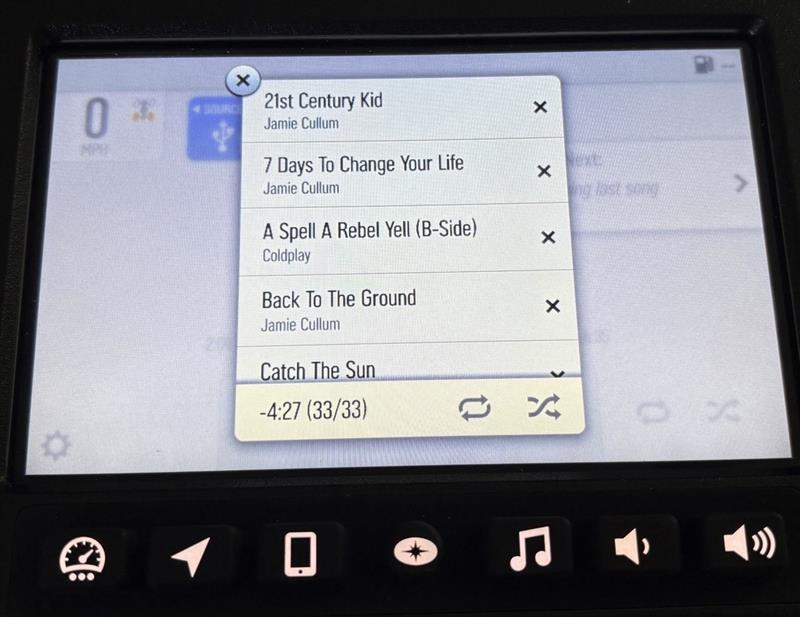
The anchored bottom bar displays remaining play time, the current song's position in the list and the repeat/shuffle controls. A user can remove the song from the queue by tapping the X button.
Note: If the last song from the queue is replaying and repeat is OFF, the message "Playing last song" will be displayed as UP NEXT.
More Menu: All available music categories found on the connected USB flash drive will appear under the More menu.
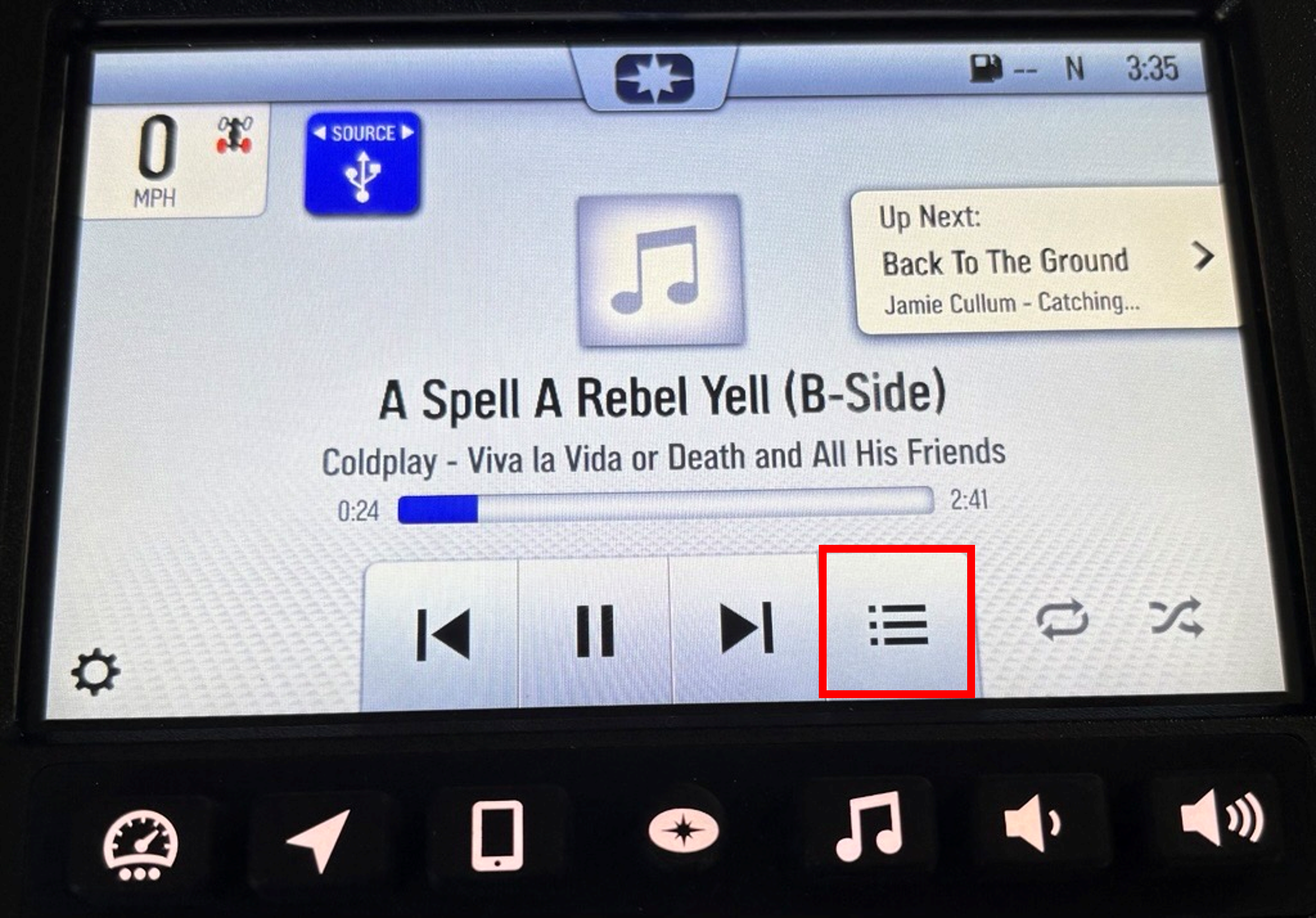
In the More menu, music is categorized by artist, album and song.
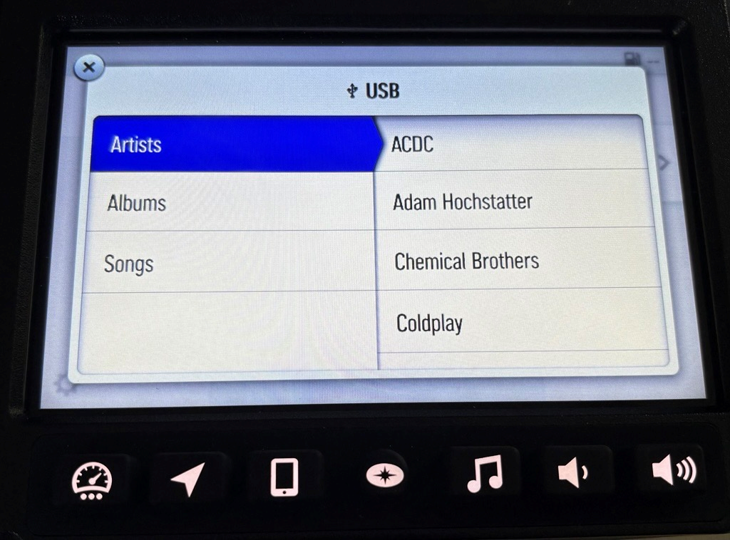
1. Artists
- Album titles are accompanied by cover art on flash drives that are loaded with album metadata.
- Tapping PLAY ALL will play all songs by the selected artist and immediately close the browse panel.
- Tapping SHUFFLE will shuffle and play all songs by the selected artist, and it will immediately close the browse panel.
- Tapping the three dots "•••" will reveal two options to add all songs by an artist to the play queue. PLAY NEXT will add the songs next in the queue, and PLAY LAST will add the songs to the end of the play queue, as shown below.
2. Artists > Albums
- All album titles are accompanied by cover art on flash drives that are loaded with album metadata.
- Tapping PLAY ALL will play all songs on the selected album and immediately closes the browse panel.
- Tapping on SHUFFLE will shuffle and play all songs on the selected album and immediately closes the browse panel.
- Tapping the three dots "•••" will reveal two options to add all songs from the album to the play queue. PLAY NEXT will add the songs next in the queue, and PLAY LAST will add the songs to the end of the play queue.
3. Artists > Albums > Songs
- Tapping a song title will immediately begin playing it, and all subsequent songs in the album will be queued to play next.
- The song currently playing will be indicated by an animated EQ (speaker) graphic.
- Tapping the three dots "•••" will reveal two options to add the selected song to the play queue. PLAY NEXT will add the songs next in the queue, and PLAY LAST will add the songs to the end of the play queue.
Bluetooth® Music
When no phone is connected, the Bluetooth® music screen will display a list of paired devices and the option to add a new device. To pair a Bluetooth® device to your display, refer to Connecting Bluetooth® Devices to the 2019+ 7" Display Powered by RIDE COMMAND for step-by-step instructions, or watch the video below.
To access Bluetooth® music, press the source selector button in the top-left corner of the screen. Select BLUETOOTH®.
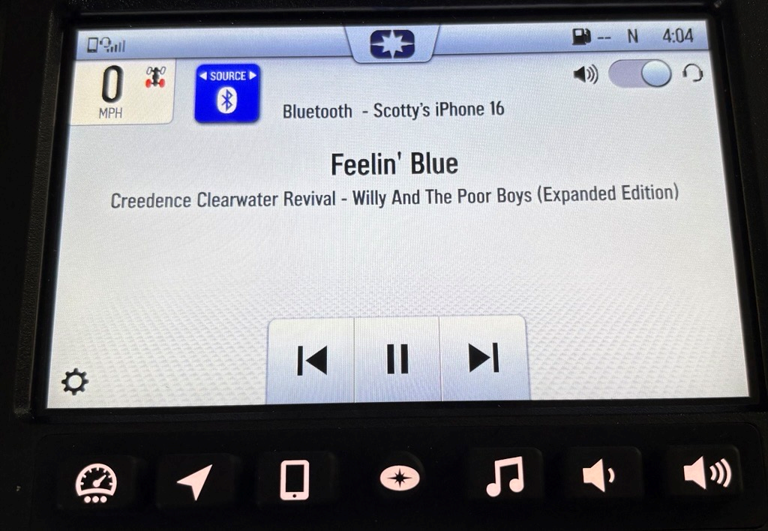
Once selected, the center of the screen will display information for the song that is playing, including:
- Source device name
- Song title
- Artist
- Album
- Song progress bar (includes current location and track length)
- Playback controls
If no sound is available after you begin streaming, check the volume on the Bluetooth® (source) device. Turn the volume up to enable the music to play.
The playback controls for Bluetooth® music include:
- Previous song
- Play/pause
- Next song
- More menu (if available)
Note: Some playback controls are unavailable when playing music from a streaming service.
Disabling Audio
To turn the audio off, press and hold the volume down button until the display is muted.
More information can be found in the RIDE COMMAND User's Guide.
Visit the RIDE COMMAND website to register your vehicle, update your software and learn more about RIDE COMMAND.
To browse all RIDE COMMAND articles, read Guide to RIDE COMMAND for Off-Road Vehicles.
For more information, see your authorized Polaris Dealer. Find a dealer near you with the Dealer Locator.
Bluetooth® is a registered trademark of Bluetooth Sig, Inc.
iPod® is a registered trademark of Apple Inc.
"Feelin' Blue" —Creedence Clearwater Revival-Willy And The Poor Boys (Expanded Edition)
Creedence Clearwater Revivalsm is a service trademark of Creedence Clearwater Revival, LLC
A Spell A Rebel Yell (B-Side) —Coldplay-Viva la Vida or Death and All His Friends
Coldplaysm is a service trademark of Chris Martin INDIVIDUAL, Jon Buckland INDIVIDUAL, Guy Berryman INDIVIDUAL, and Will Champion INDIVIDUAL UNITED KINGDOM
"Just In Case" —Morgan Wallen-I'm The Problem
Morgan Wallensm is a service trademark of Morgan Wallen INDIVIDUAL USA
"21st Century Kid" —Jamie Cullum-Catching Tales
"7 Days To Change Your Life" —Jamie Cullum-Catching Tales
"Catch The Sun" —Jamie Cullum-Catching Tales
Back To The Ground" —Jamie Cullum-Catching Tales
Jamie Cullumsm is a service trademark of Sussex Music Limited UNITED KINGDOM
AC/DCsm is a service trademark of Leidseplein Presse B.V. NETHERLANDS
Chemical Brotherssm is a service trademark of Tom Rowlands INDIVIDUAL, and Edmond Simons INDIVIDUAL UNITED KINGDOM
Unless noted, trademarks are the property of Polaris Industries, Inc.
© 2025 Polaris Industries Inc.


