


The Polaris App allows you to track your rides.
To track a ride, you can either:
- Select MORE from the bottom panel of buttons and then tap the TRACK RIDE tile.
- Navigate to the MAP tab from the bottom panel, select TOOLS in the lower right-hand corner and then the TRACK RIDE tile.
- Navigate to the RIDES tab and tap TRACK in the lower right-hand corner.
The app will immediately begin recording your ride. When you wish to end the recording, select STOP.

Ride Tracking+
This is a feature of RIDE COMMAND+ that automatically starts and stops recording rides, so you don't have to worry about manually tracking your rides. The ride is recorded live with the Plug-In and automatically syncs to the Cloud when the ride is complete and the Plug-In has enough service to transmit the data.
This feature is available through RIDE COMMAND+ and requires both the Plug-In and an active subscription. Read RIDE COMMAND+ for Off-Road Vehicles for more information.
Editing Your Ride
The ride will automatically name itself. If you wish to change the name of the ride, select the pencil icon.
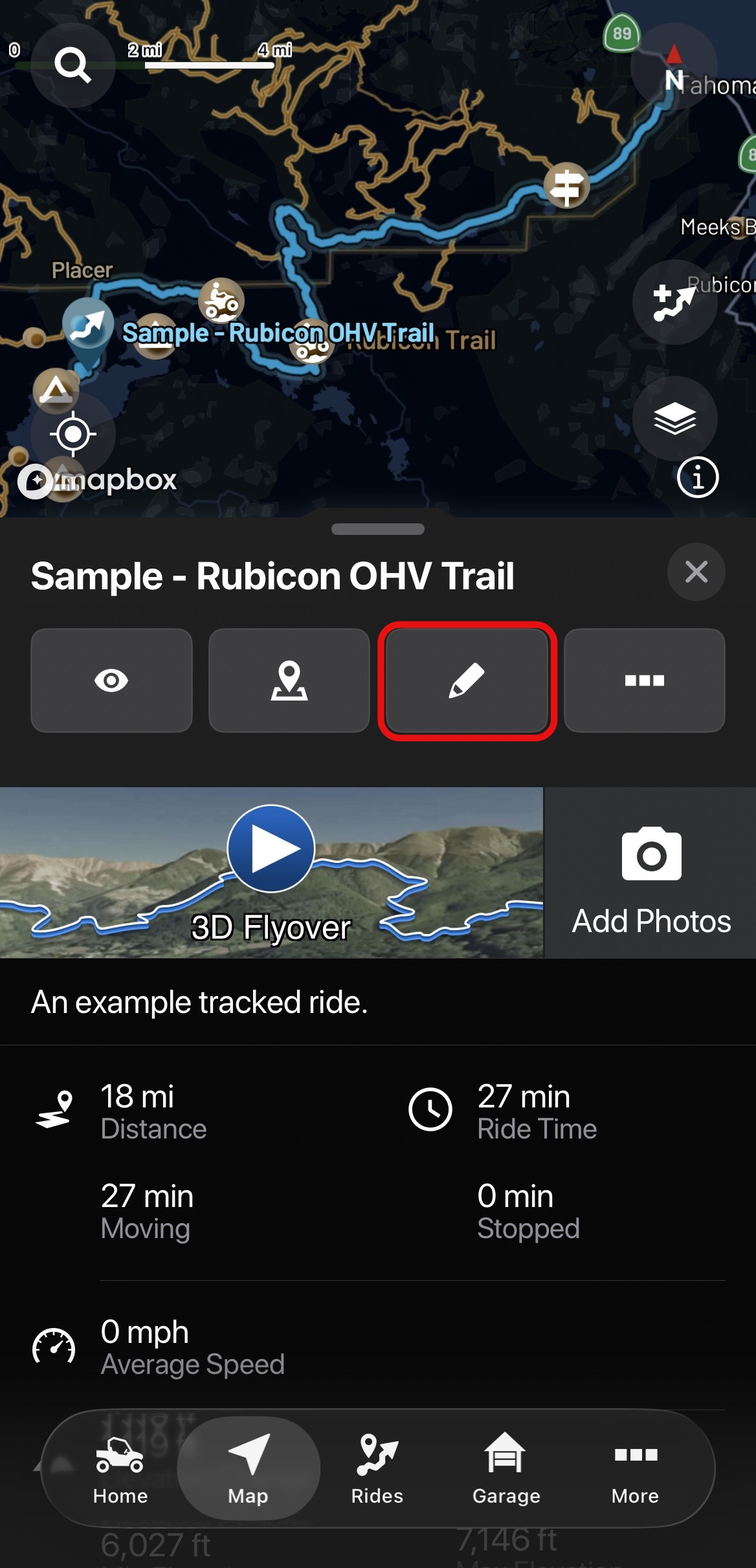
The following screen will allow you to change the color of the tracked ride and rename it. You can also add any notes or details about the ride in the Notes field under the Name field. Once you are finished modifying your tracked ride, press DONE.
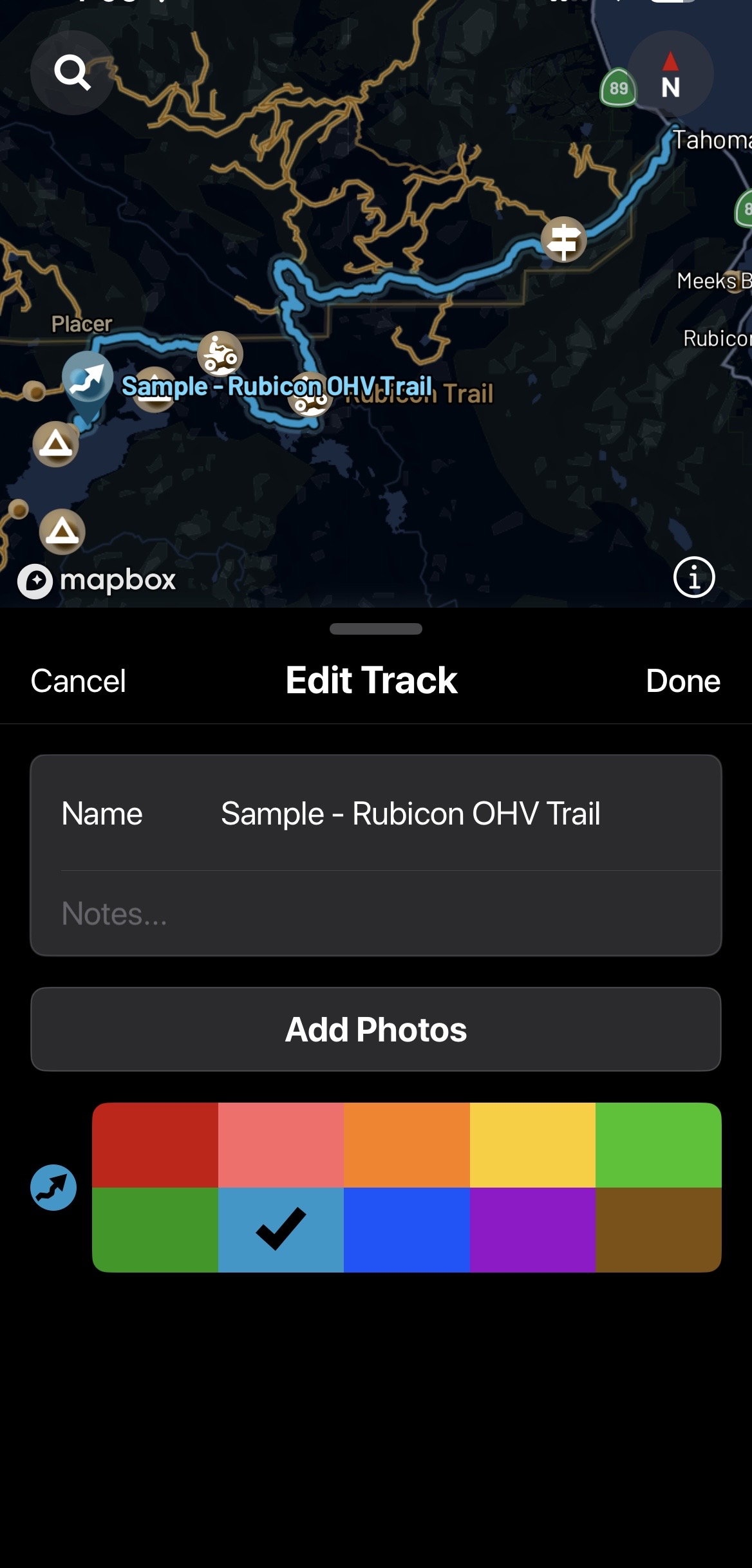
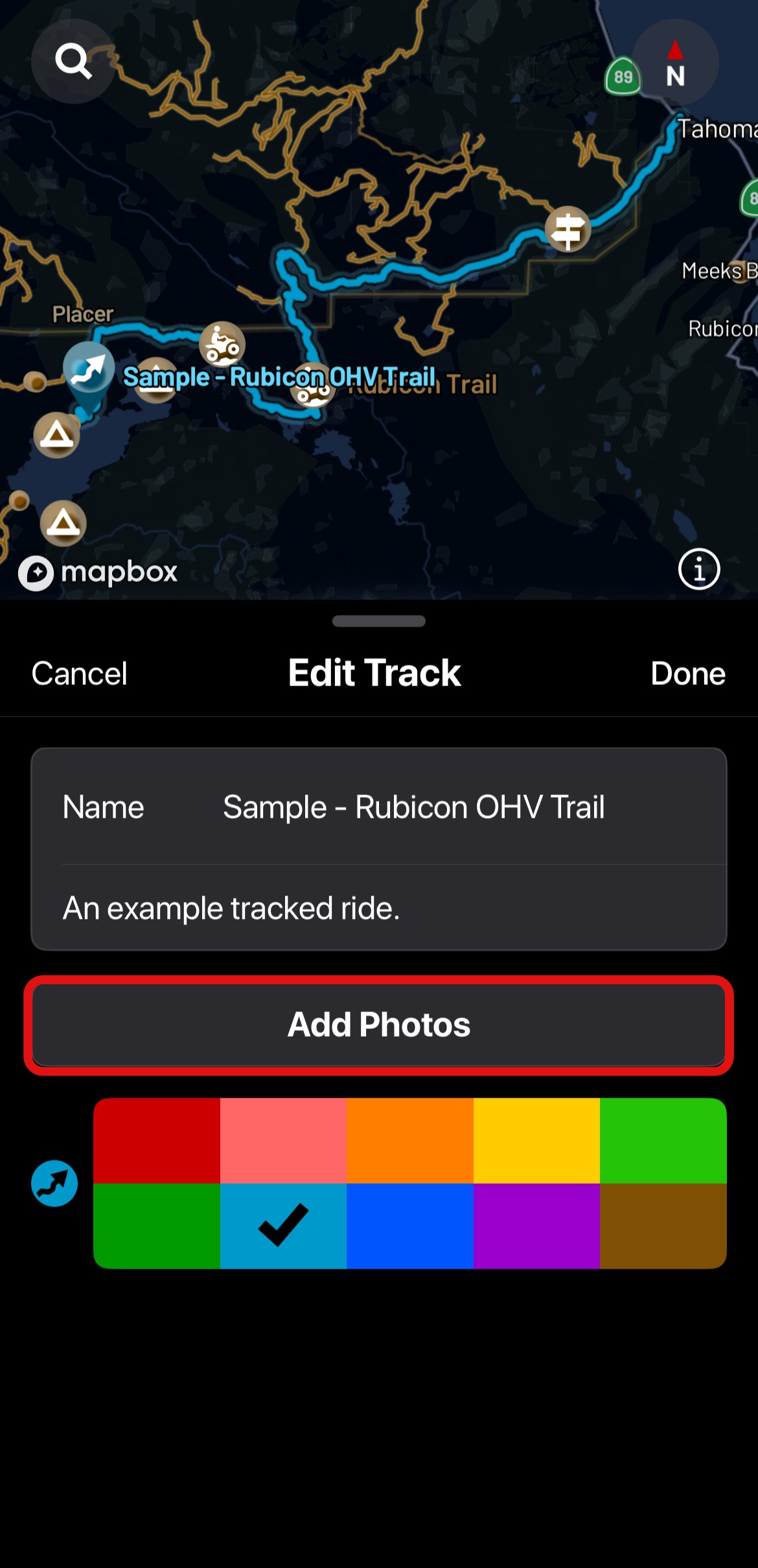
If you wish to add photos to your ride, select ADD PHOTOS. This will allow you to add photos that were taken within an hour before and after your ride.
Finding Tracked Rides
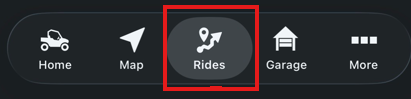
To find your previously tracked rides, select the RIDES option from the menu at the bottom of the screen.
Select TRACKS at the top-left corner of the screen.
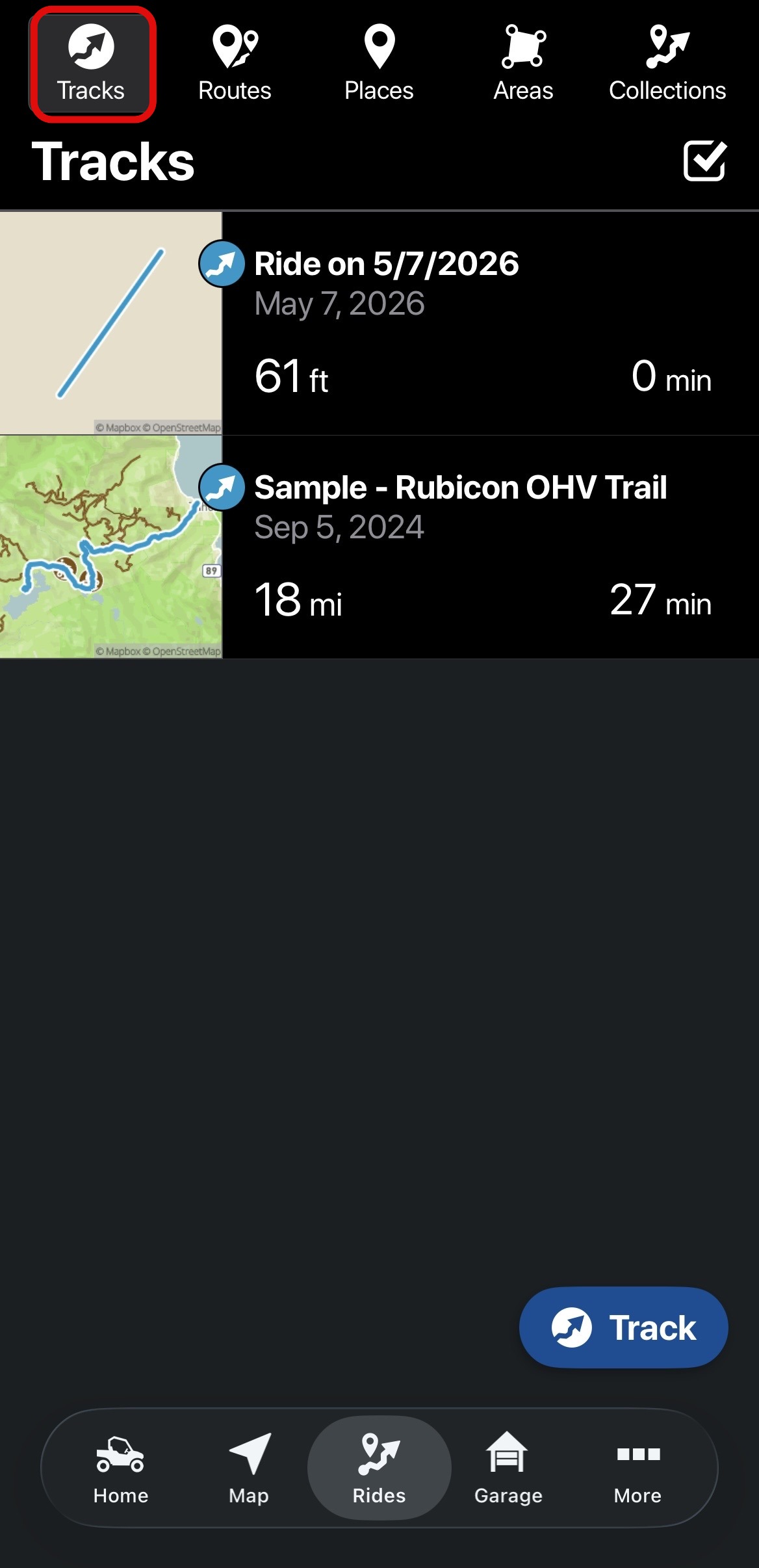
This will bring up your list of tracked rides.
Deleting a Tracked Ride
Select RIDES from the menu at the bottom of the screen.
Select TRACKS at the top of the page. To modify a ride, select the check mark in a box in the upper right corner.
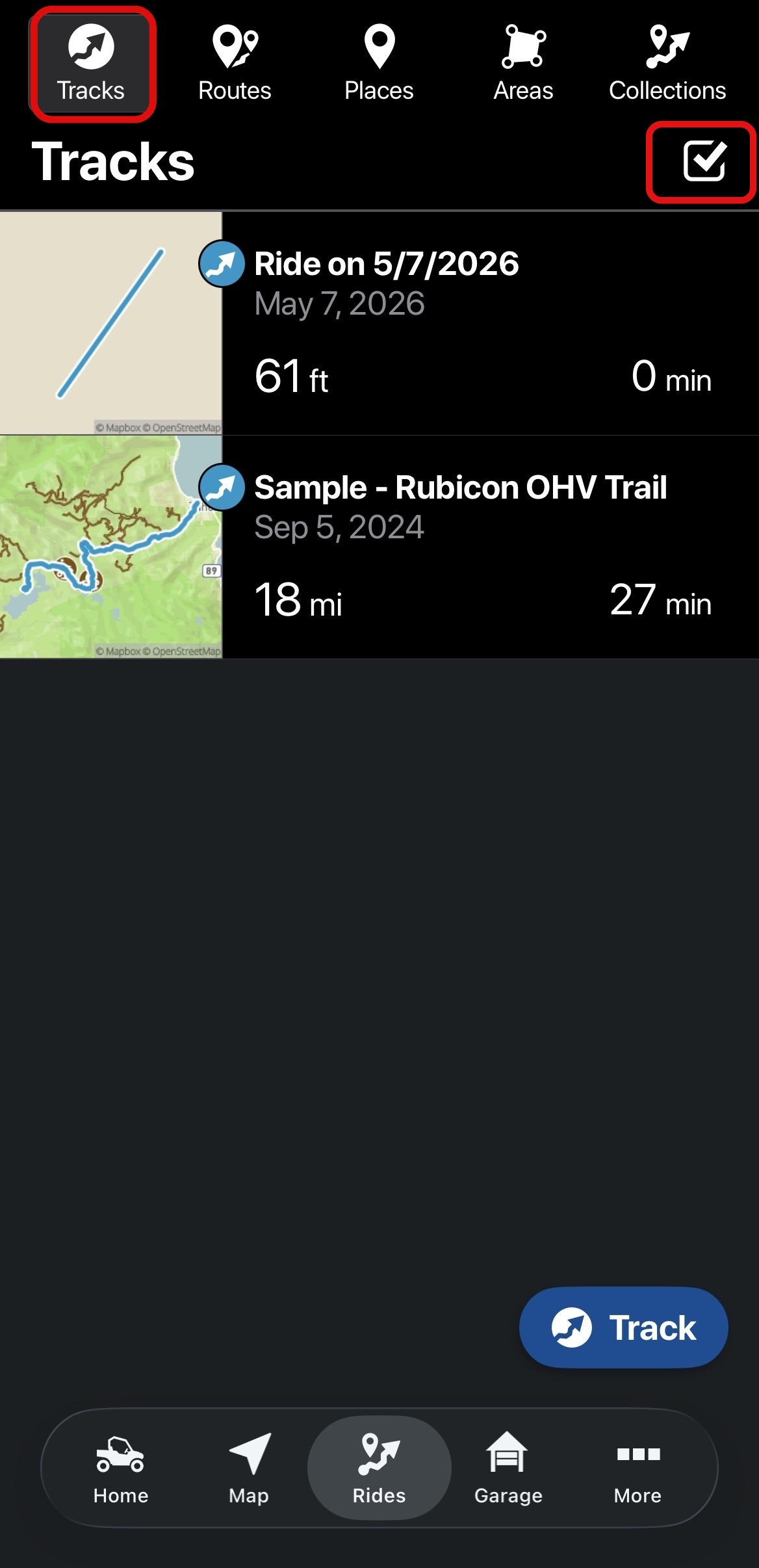
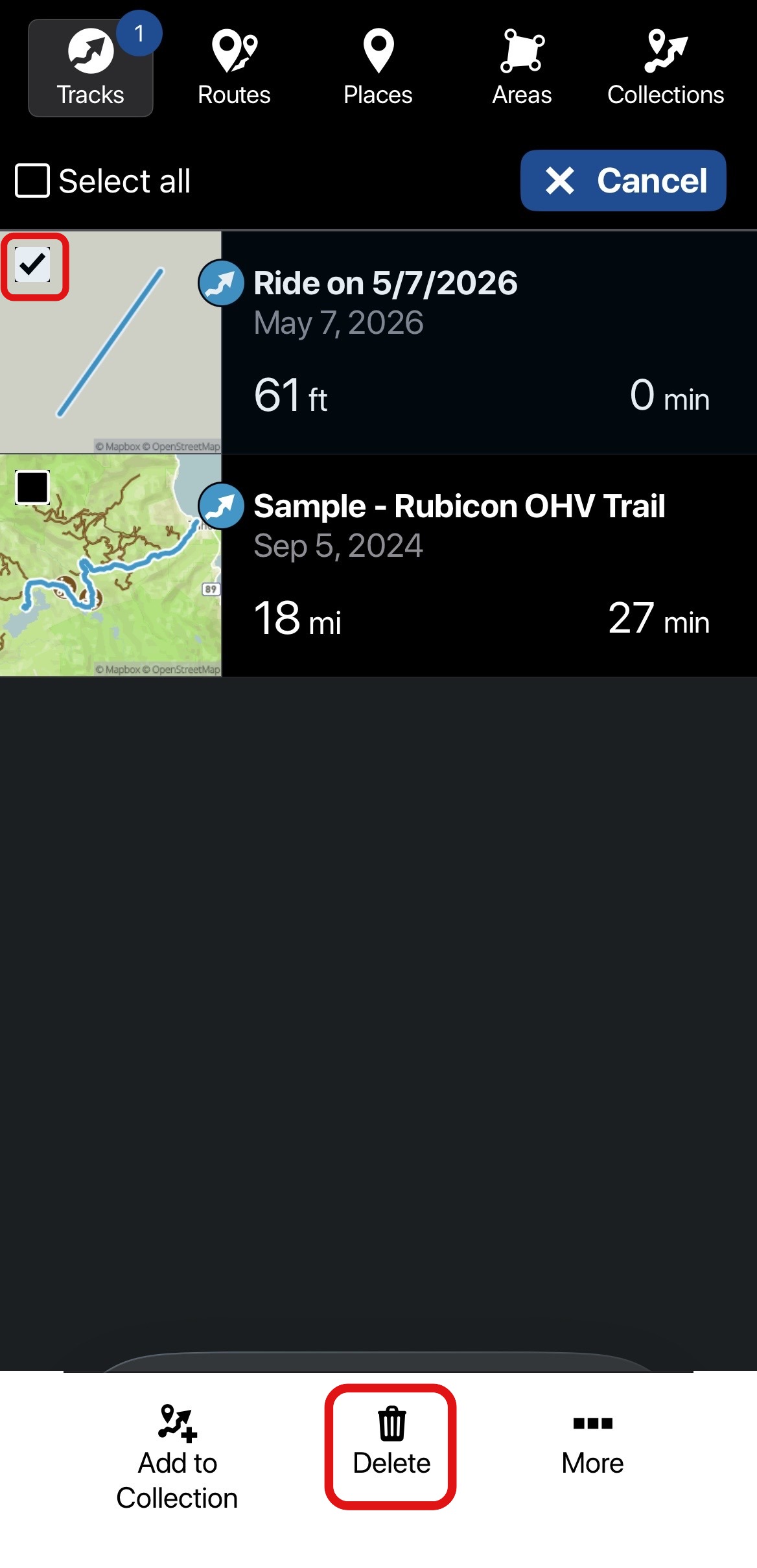
Select the ride you wish to delete by selecting the box on the image of the ride. You can click SELECT ALL to delete all rides. Once selected, click the trash can icon that says DELETE to delete the ride.
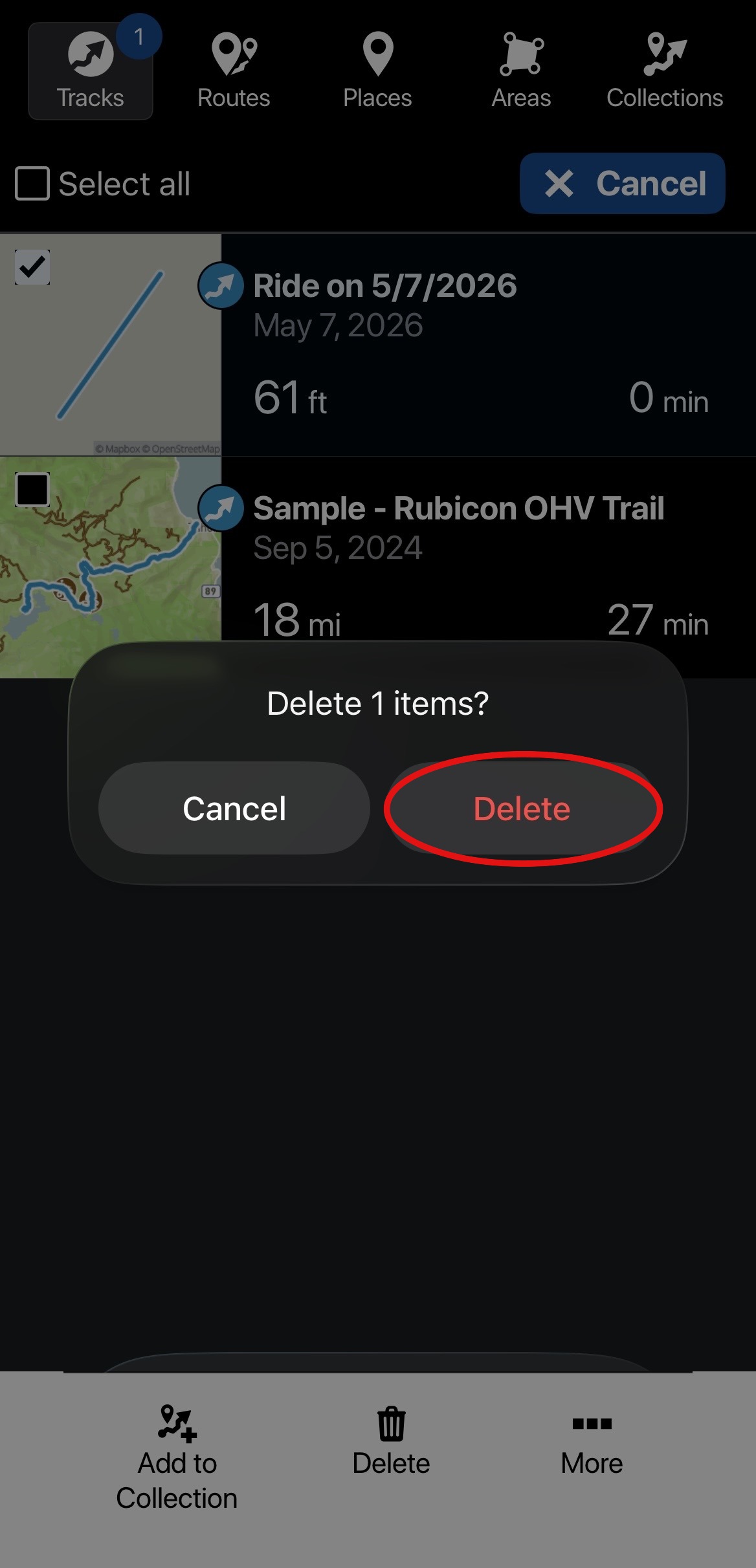
Press DELETE again to confirm deleting the ride.
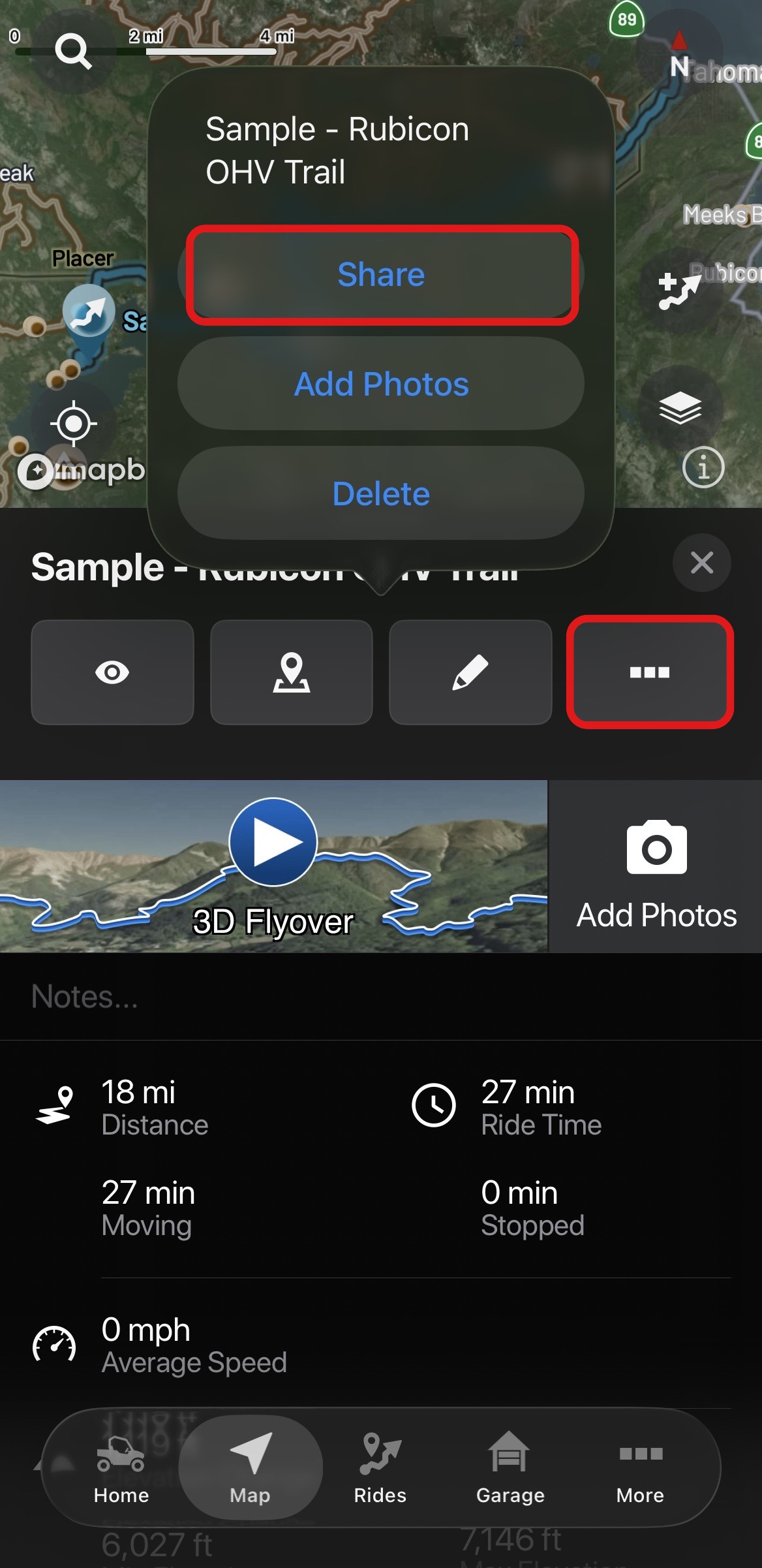
To share your rides via social media or text message, select the three dots and then SHARE.
The eye icon lets you determine which tracked rides show on your map when the details box is closed. When the eye is as pictured below, the specific trail will appear on the map after the details box is closed. When the eye is slashed through, the trail will not show on the map after the details box is closed.
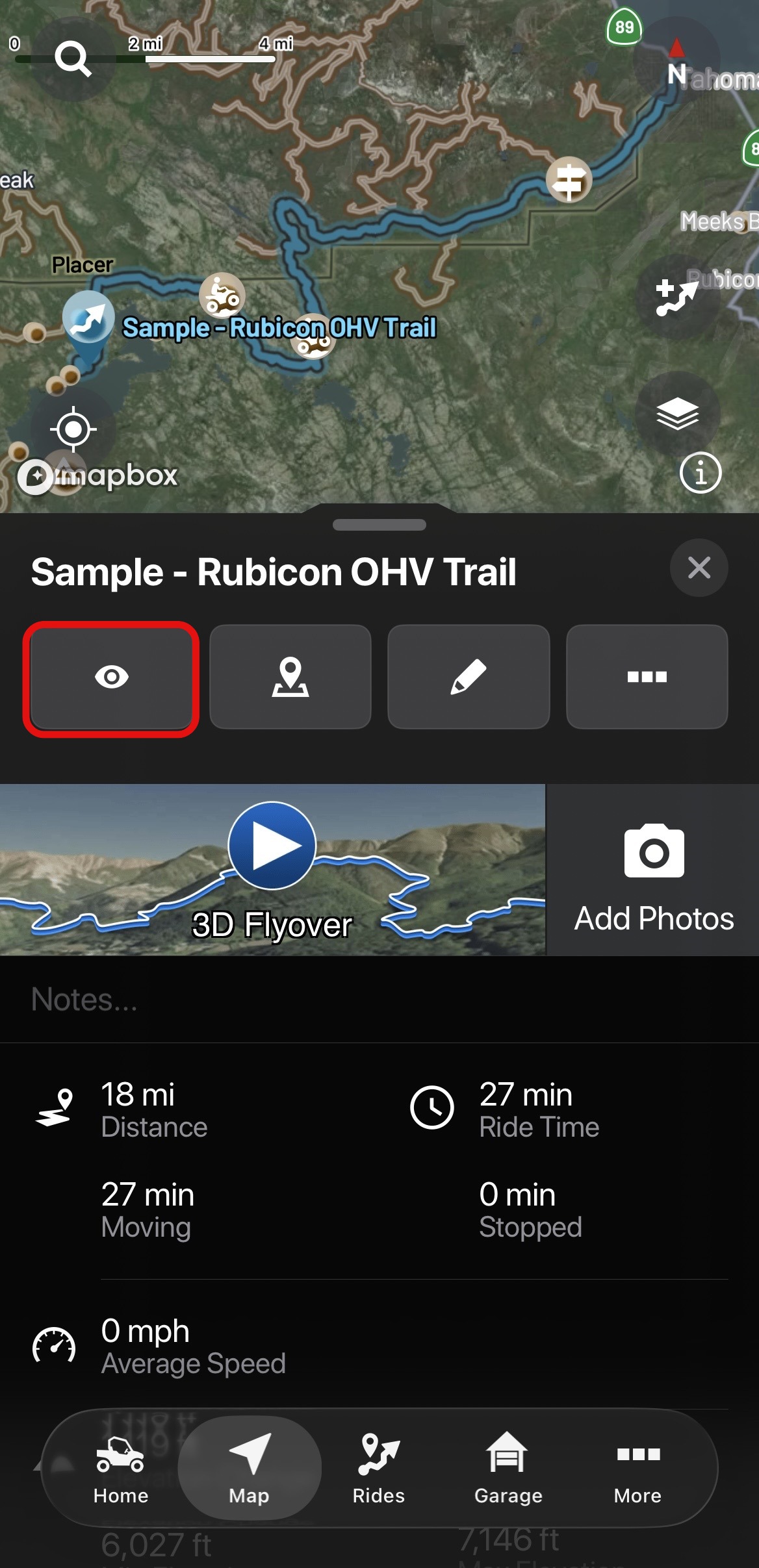
Note: To see your ride on the map once the details box has been closed, you must toggle tracked rides to be ON (shown) on the map.

Read Using 3D Flyover for help re-living your tracked rides from an overhead view.
To browse all RIDE COMMAND articles, read Guide to RIDE COMMAND for Off-Road Vehicles.
The Polaris App is available on the App Store® for iPhone® and iPad® and on Google Play®.
Visit the RIDE COMMAND website for additional information about features, displays and software/map updates.
Mapboxsm is a service trademark of Mapbox, Inc.
Google Play® is a registered trademark of Google LLC
App Store®, iPad® and iPhone® are registered trademarks of Apple Inc.
Unless noted, trademarks are the property of Polaris Industries Inc.
© 2026 Polaris Industries Inc.


